




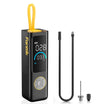
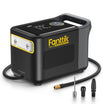
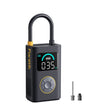
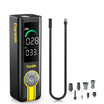
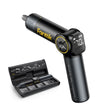
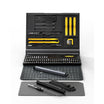
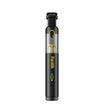
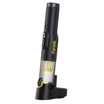
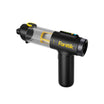
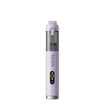
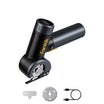
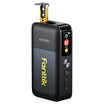
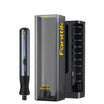
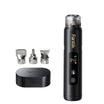
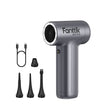

You can clean dust from a desktop PC with an electric air duster if you combine two sets of directions. Take the shutdown, case access, and closing steps from your PC maker. Take the nozzle, speed, and distance for computer parts from your duster's own manual.
Published PC cleaning steps are written for canned air, so they don't give electric-duster settings. Hold each fan still while air moves across it. If your duster manual says nothing about computer internals, leave the inside alone rather than guess.
Can You Safely Clean a Desktop PC With an Electric Air Duster?
Yes, but only if the duster's manual explicitly covers computer cleaning and provides operating limits like approved nozzles and speeds. The PC maker's steps and the duster maker's limits answer different questions. Treat them as two halves of one job.

The PC side is fairly well documented. HP gives a desktop sequence that covers powering down, opening the case, and closing it again. But its step for cleaning inside the case says to use canned air, not an electric duster. A can of compressed air and a battery-powered blower are different tools. A distance or burst rule written for one doesn't tell you how hard or how close the other one blows.
The duster side changes from model to model. Some duster manuals have a section on dusting a computer. One example lists which nozzles and brushes to use and suggests taking the computer apart and working outdoors. Even that kind of section may not give a working distance, a burst length, or a fan rule. Before you start, open your duster's manual and look for three things:
- Which nozzle to use on electronics or computer parts
- Which speed setting to start on
- Any working distance or note about keeping the tool moving

Whatever it lists becomes your operating limit for desktop PC dusting. If it lists nothing for computers, clean only the outside vents for now and contact the duster maker's support about electronics use.
Prepare and Open the PC as Its Manufacturer Directs
Shut down fully, disconnect the PC, let it cool, and then open the case the way your PC maker describes. For desktops covered by its guidance, HP's desktop cleaning steps list this order:
- Turn off the computer. Use a full shutdown, not sleep.
- Disconnect the power cord and the other cables.
- Wait for the computer to cool down.
- Remove the side panel.
HP also says to vacuum the outside vents, especially around the power supply vent, and warns never to use the vacuum inside the computer.
If you have a different brand, follow that maker's manual for shutdown, disconnecting, and side-panel removal. Case designs vary. Don't pry off panels or remove parts the manual doesn't mention. Once the panel is off, use the PC manual to find the fans in your model, such as the CPU cooler, the graphics card fan, and the case fans. That way you know what you'll need to hold still.
Control the Airflow Around Components and Fans
Hold each fan still, and keep the duster inside the limits its manual sets for computer parts. HP's computer cleaning guide recommends holding fans still during cleaning to prevent them from over-spinning under directed airflow.
With the case open, work like this:
- Fit the nozzle your duster manual names for electronics. Change nozzles only with the motor off.
- Start on the speed setting the manual gives for delicate parts or computers.
- Press a finger on the fan hub or frame so the blades can't turn. Keep holding it the whole time air moves across that fan.
- Use short, controlled passes at the distance your manual lists. Don't jam the nozzle right up against parts.
- Let go of the fan only after the air has stopped.
Two points matter here. First, if your manual gives no distance or speed for computer parts, skip the air step inside the case. Don't make up a setting. Second, keep the duster's own air intake clear of your hand and clothes. A blocked intake can cut airflow and make the motor run hot. Wear eye protection, because loosened dust can bounce back toward your face.
Close the Case and Restore Power
Put the case back together before you plug anything in. HP's guidance specifies replacing the side panel, reconnecting the power cord, and then turning on the computer.
Before you close the case, verify that no tools, loose screws, or brushes remain inside. If you have a different brand, follow that maker's steps for reattaching the panel and reconnecting cables. When the PC starts, listen for normal fan sound, and shut down immediately if anything makes contact with a fan blade.
FAQs
Do canned-air instructions apply to an electric air duster?
Only the handling steps carry over, like powering down, disconnecting, and holding fans still. The air limits don't. Settings written for a can of compressed air don't tell you an electric duster's nozzle, speed, or safe distance. Those have to come from the duster's manual.
What if my duster's manual doesn't mention computers?
Don't use it inside the PC until you know its limits. You can still vacuum the outside vents with the PC unplugged. Then ask the duster maker's support which nozzle, speed, and distance it recommends for computer internals.
Can I use a vacuum inside the case instead?
No. HP's desktop guidance says to use a vacuum only on the outside vents and warns against using it inside the computer, to avoid damaging internal parts.
Do all desktop PCs have the same fans?
No. The number of fans and where they sit depend on the model. A PC with a separate graphics card has a fan on that card as well as the CPU cooler. Check your PC's manual so you know every fan you'll need to hold still.
Continue reading
 Vacuuming Sofa Crevices with a Handheld Vacuum
Learn how to check the care code and seams, choose an allowed attachment, and lift dry crumbs from...
 Pressure Washing a Wood Deck Without Gouging the Surface
Find out how to confirm your deck and washer allow pressure washing, test a hidden board for etching,...
Leave a comment
This site is protected by hCaptcha and the hCaptcha Privacy Policy and Terms of Service apply.