




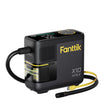
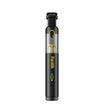
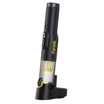
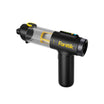
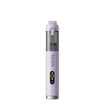
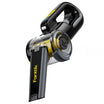
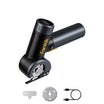
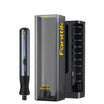
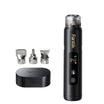
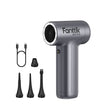

Yes, a small handheld vacuum can pick up loose crumbs from a keyboard tray or desk. The job ends at the keyboard, though. Vacuum only the open tray surface, and don't run the vacuum over the keyboard or loose keycaps unless the keyboard maker gives guidance for that use.
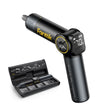
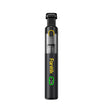
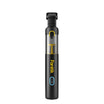
For our Slim V10 Lite, the product description names cleaning desks and picking up snack crumbs among its small cleanup jobs. That supports a "yes" for crumbs on an open, desk-like tray with that model. It doesn't mean every handheld vacuum is meant for the same job.

Can You Vacuum Crumbs From a Keyboard Tray?
Keyboard tray cleaning stays simple when you keep the vacuum on bare surface. Here is a practical way to keep the job on the tray. It's a common-sense approach, not a step-by-step method from a manufacturer:

- Clear the tray first. If you can, unplug the keyboard or lift it out and set it to one side. Then the whole tray is open and nothing powered sits in the path.
- Vacuum only the open tray. If the keyboard has to stay put, work on the loose crumbs on the exposed tray and stop before you reach the keyboard's edge.
- Treat the keyboard as a separate job. Crumbs between or under the keys aren't part of tray cleaning. See the next section.
Our product description doesn't list a tray-specific method, nozzle, or suction setting, so we won't name one here. Use the instructions that came with your own vacuum for attachments and modes.
Why the Keyboard Needs Its Own Manufacturer Guidance
A keyboard is powered electronics with keycaps that can come loose. A method that works on a flat tray does not carry over to the keyboard itself. For direct cleaning, always follow the specific instructions from the company that made your keyboard or computer.
While our Slim V10 Lite description mentions dusting computer keyboards, it gives no step-by-step cleaning procedure. Do not treat the tray advice above as permission to vacuum the keys directly.
Apple shows how specific that guidance can be. Apple's MacBook cleaning instructions apply to MacBook (2015 and later) and MacBook Pro (2016 and later) models with a key that doesn't respond or feels different from the others. For those cases, Apple specifies cleaning with compressed air. It directs users to control airflow with the included straw and keep the end about half an inch away. The steps are written for those models and those key problems only.
Compressed air and vacuums are different tools, so one tool's instructions don't apply to the other. The same caution applies to cleaning other sensitive electronics. Our article on air dusters and camera gear shows how camera makers handle the same question in their own manuals.
FAQs
Does the Slim V10 Lite description apply to every handheld vacuum?
No. Cleaning desks and picking up snack crumbs is how we describe the Slim V10 Lite. Other handheld vacuums have their own intended uses. Check your vacuum's manual before assuming it's meant for the same jobs.
Does Apple's compressed-air guidance cover every keyboard?
No. It covers MacBook (2015 and later) and MacBook Pro (2016 and later) models with a key that doesn't respond or feels different. For an external keyboard, another laptop, or loose keycaps, follow that maker's own instructions.
Which nozzle or suction setting should you use for tray crumbs?
Our product description doesn't name a nozzle or setting for keyboard trays. Use the attachment and mode guidance in your vacuum's own manual. Don't guess based on which accessories came in the box.
Continue reading
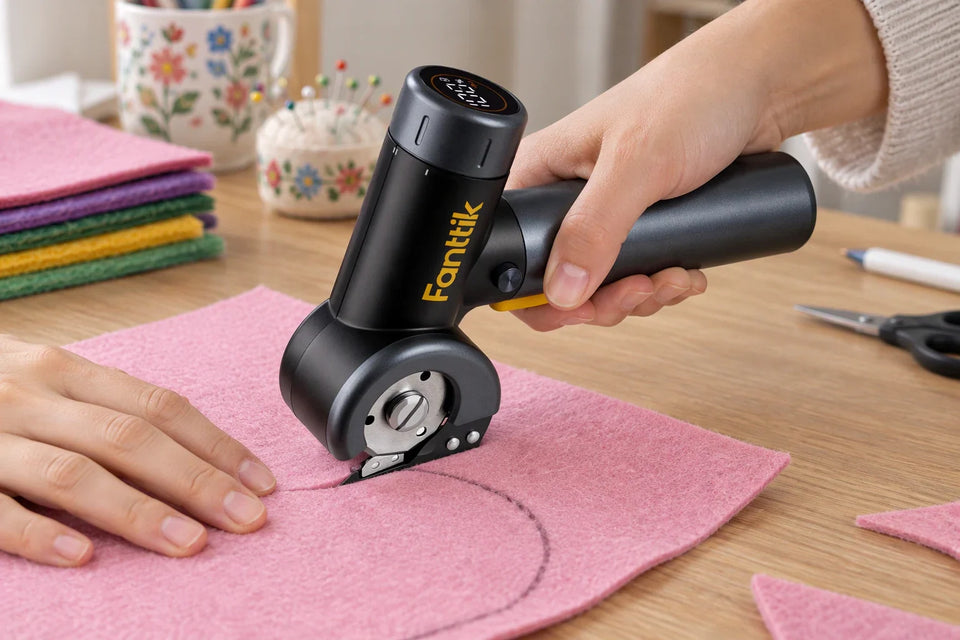 Cutting Felt for Appliqué With Electric Scissors: Keep Curves Controlled
How to decide if powered scissors suit your felt appliqué: compare rated capacity, test a scrap at real...
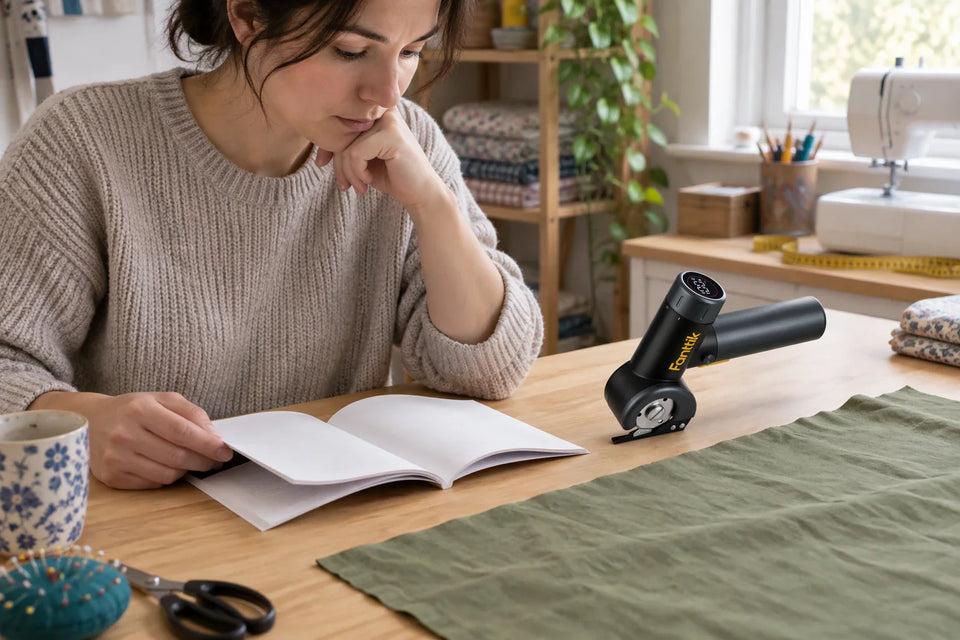 Using Electric Scissors for Sewing Fabric: Check Material and Layer Limits
Find out how to match your fabric, thickness, and layer count to your electric scissors' documented limits, and...
Leave a comment
This site is protected by hCaptcha and the hCaptcha Privacy Policy and Terms of Service apply.