





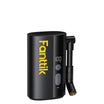
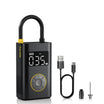
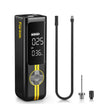
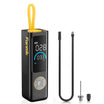
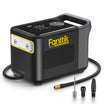
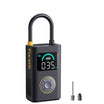
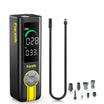
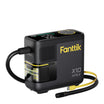
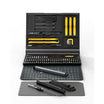
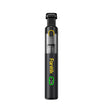
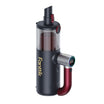
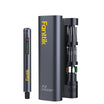
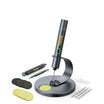
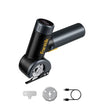
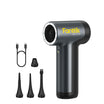

Computer air dusting with an electric duster is really two jobs. For the keyboard, you disconnect it and tap out loose debris before you blow between the keys. For the PC, you hold each fan still while you clean it.
Neither job comes with one universal electric-duster setting. The published keyboard and PC cleaning steps from Microsoft and HP are written for canned compressed air. That means nozzle choice, distance, and speed have to come from your own duster's manual, and if the manual doesn't cover a step, skip it instead of guessing.

Before You Use an Electric Air Duster
You need two sets of instructions before you switch the duster on: one for the duster and one for the device you're cleaning. Directions written for a can of compressed air won't tell you an electric unit's nozzle, distance, airflow setting, or how to move it, so don't borrow those limits.
- Identify your exact models. Note the model of your duster, keyboard, and PC. Look for a label on the bottom of the keyboard or on the PC case, or check your order history.
- Find the duster's rules for electronics. Look in the duster manual for the nozzle, speed setting, and working distance it lists for keyboards or computer parts, and whether it says to keep the tool moving. If it covers these, treat them as your operating limits.
- Find the device's access steps. Use the keyboard or PC manual to learn how to disconnect it, open it, and reach the parts you want to clean.
- Stop at any gap. If the duster manual doesn't mention computer components, don't make up a distance or speed. Do only the steps that need no air, and ask the duster maker's support about electronics use.
Access instructions matter because computers aren't all built the same way. Dell notes that its desktops have both a processor (CPU) fan and a fan on the dedicated video card (GPU), while its laptops and other computers can have one or more fans depending on the model. The panel you remove and the fans you find inside one PC may not match another, so work from the manual for your model.
How to Clean a Mechanical Keyboard
Use a disconnect, tap, then blow sequence. That order comes from Microsoft's keyboard cleaning instructions, which are written for Microsoft keyboards and a can of compressed air. It is a helpful model to follow, but it is not an electric-duster procedure.
- Disconnect the keyboard. Unplug the cable, or take out the batteries if it's wireless. Microsoft says to always do this before cleaning.
- Tap out loose debris. Hold the keyboard upside down over a trash can or towel and tap it gently. Crumbs and grit that fall out now won't get blown deeper between the keys.
- Clear the surface and the gaps between keys. Microsoft uses a can of compressed air for this step. If you use an electric duster instead, stick to the nozzle, speed, and distance your duster manual gives for keyboards or electronics. If the manual gives none, stop after step 2.
- Check the result. Reconnect the keyboard and press every key. If a key still feels gritty or sticks, don't escalate with more air or a guessed setting. Go to the keycap question below.
Leave the keycaps on unless your keyboard maker's instructions say they can come off and explain how. The sequence above never removes any keys, and pulling caps turns a quick dust clean into disassembly that exposes the switches underneath. If your keyboard maker does document keycap removal, use its recommended tool and method. Only aim the duster at the open switches if your duster manual also covers that use.
How to Clean PC Fans
Hold each fan still while you clean it. HP's PC-cleaning guide gives that instruction as part of its compressed-air steps, saying it prevents over-spinning. HP's guide doesn't set any distance, power, nozzle, or motion limits for an electric duster, so those still come from your duster manual.
- Locate the fans. Using your PC's manual, find out which fans your model has and where they sit, such as the CPU cooler, the graphics card, or the case.
- Open the case the way the manufacturer describes. Follow the model's own access steps for removing the panel. Don't pry or remove parts the manual doesn't mention.
- Hold the fan so the blades can't turn. Keep it still the whole time air is moving across it, as HP directs.
- Apply air only within your duster's stated limits. Use the nozzle, speed, and distance your duster manual lists for computer components. If it lists none, leave the fans for now instead of improvising a setting.
- Check and close up. Look at the blades and the grille around them. When the dust is gone, let go of the fan and reinstall the panel.
If you took out small screws to reach a fan, put them back snug without forcing them. Our guide to torque settings for sensitive electronics explains fastener ranges and where overtightening causes trouble.
FAQs
Do compressed-air instructions apply to an electric air duster?
No. The Microsoft and HP cleaning steps are written for canned compressed air, and they don't cover an electric duster's nozzle, speed setting, working distance, or movement. You can follow their order and handling steps, like disconnecting or holding a fan still, but the air settings have to come from your duster's manual.
Do all PCs have the same fan layout?
No. The number of fans and where they sit depend on the model. A desktop with a dedicated graphics card has at least one more fan than the CPU cooler alone, and some computers have only one fan. Use your exact PC's manual to find each fan before you open the case.
Should I remove mechanical-keyboard keycaps?
Only if your keyboard maker says the caps can come off and explains how. Without that guidance, keep the caps on and clean around them. If the maker allows removal, use its tool and method. Use the duster near the exposed switches only if your duster manual covers that.
Why do cleaning guides say to hold PC fans still?
HP's guide says to hold fans still while you clean them to keep them from over-spinning. In practice, that means keeping the blades from turning while air moves across them. For how hard or how close to blow, go by your duster manual.
Do I need to take the batteries out of a wireless keyboard first?
Microsoft says to always disconnect its devices before cleaning, and to take out the batteries if the device is wireless. For a wireless mechanical keyboard with a built-in battery, check that maker's instructions for the correct power-off or disconnect step.
What if my electric duster's manual doesn't mention computers?
Then don't use it on computer parts until you know the limits. Tapping loose debris out of a disconnected keyboard needs no air at all. For anything else, ask the duster maker's support which nozzle, speed, and distance it recommends for keyboards and PC internals before you continue with computer air dusting.
Continue reading
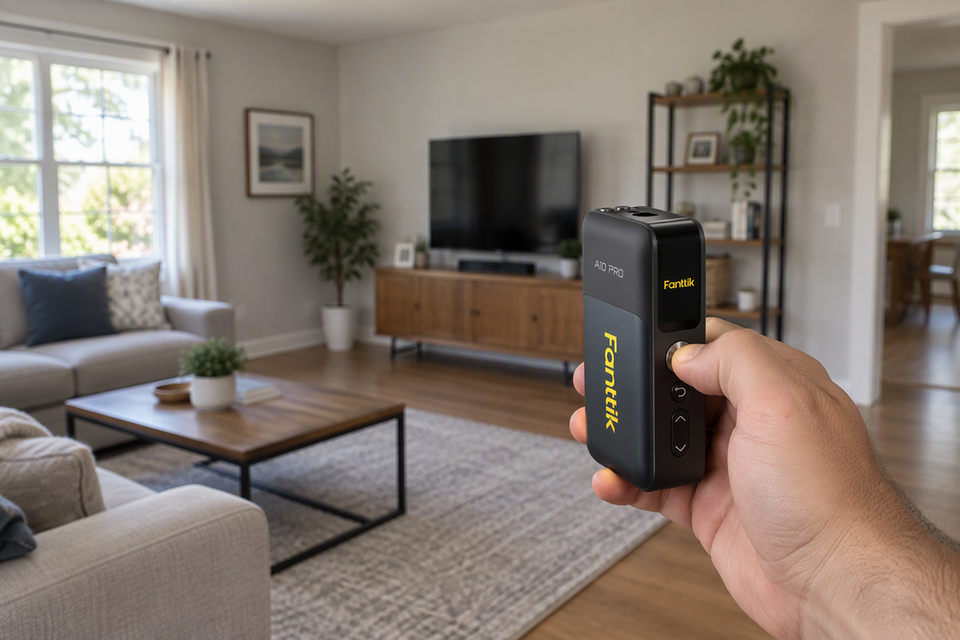 How to Choose a Laser Distance Meter: Accuracy, Range, and Smart Functions
A practical DIY guide to screening handheld laser measures: match range and accuracy to real jobs, weigh working...
How to Choose a Laser Distance Meter: Accuracy, Range, and Smart Functions
A practical DIY guide to screening handheld laser measures: match range and accuracy to real jobs, weigh working...
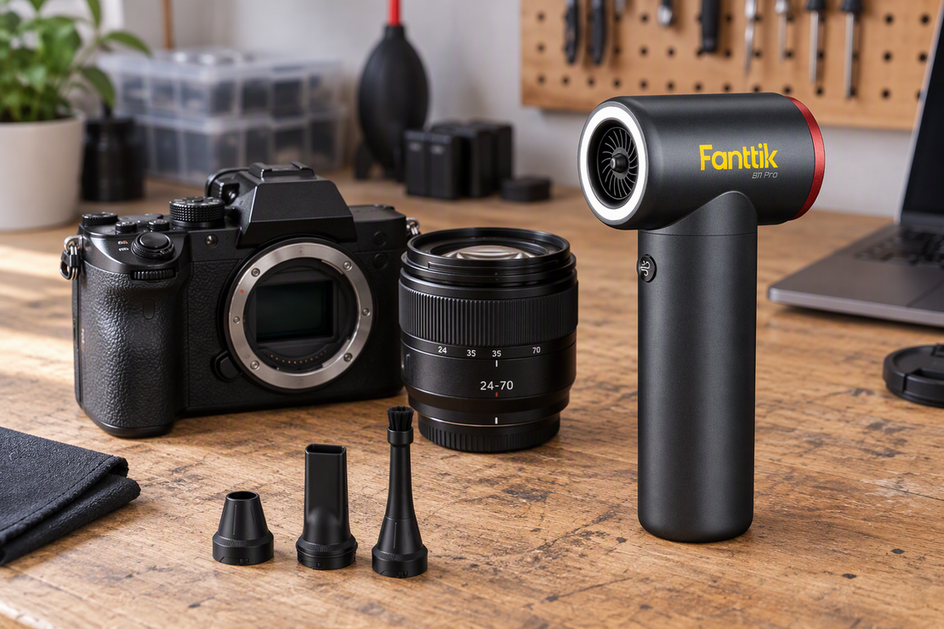 Using Electric Air Dusters on Camera Gear: Is High-Velocity Air Safe for Lenses and Sensors?
Manufacturer guidance separates gentle blower cleaning from powered air. Here is how to judge an electric duster for...
Using Electric Air Dusters on Camera Gear: Is High-Velocity Air Safe for Lenses and Sensors?
Manufacturer guidance separates gentle blower cleaning from powered air. Here is how to judge an electric duster for...
Leave a comment
This site is protected by hCaptcha and the hCaptcha Privacy Policy and Terms of Service apply.