



















Quick Reference: Recommended Torque Heuristics for Laptops
For quick reference, the following table summarizes common torque ranges used in a workshop setting. Note: These are practical heuristics based on internal repair observations, not manufacturer-mandated specifications.
| Component Type | Suggested Torque Range | Tooling Requirement |
|---|---|---|
| Ultra-Delicate (ZIF, Wi-Fi brackets) | 0.1 – 0.2 N·m | Manual or Low-Torque Electric |
| Standard Internal (M2/M2.5 Motherboard) | 0.3 – 0.4 N·m | Precision Electric Driver |
| Structural/Thermal (Heatsink, Hinges) | 0.5 – 0.6 N·m | Graduated Cross-Pattern |
| Safety Priority | Disconnect Battery | Anti-static tools |
The High Stakes of Precision: Why Torque Control is Essential for Laptop Repair
We have spent countless hours at the repair bench, and if there is one lesson that stands out, it is this: in high-density electronics, the difference between a successful upgrade and a damaged component is often less than half a Newton-meter. Modern laptops, particularly ultrabooks and tablets, are marvels of engineering where components are packed with microscopic tolerances. When working with multi-layered Printed Circuit Boards (PCBs), overtightening a single screw can exert enough localized pressure to crack internal copper traces or delaminate the board.
The challenge for the DIY enthusiast is that "finger-tight" is a subjective and often unreliable metric. In our experience, repairs frequently fail because a user applied the same force to a laptop's M2 internal screw as they would to a household fastener. This guide outlines a methodical approach to mastering low torque settings, moving toward a technical, data-informed process for precision assembly.
As discussed in The 2026 Modern Essential Gear Industry Report: Engineering Trust in a Cordless World, the shift toward compact, cordless precision tools has made professional-grade accuracy more accessible. However, the tool is only part of the solution; understanding how to calibrate your technique to the specific needs of sensitive hardware is what helps ensure a damage-free result.

Defining "Low Torque" in the Context of Electronics
In general power tool applications, "low torque" might refer to 2 or 3 N·m. In the context of a laptop motherboard, that amount of force is typically excessive. For most consumer electronics, we operate in a range that is often an order of magnitude lower.
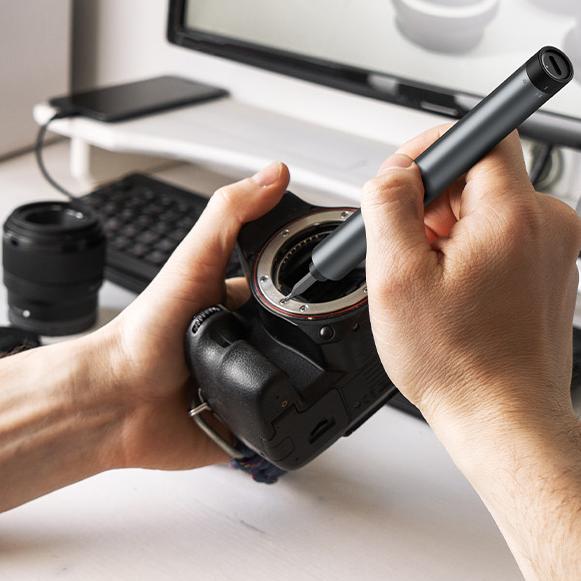
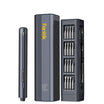
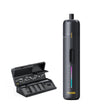
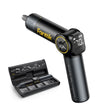
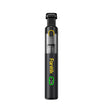
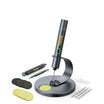
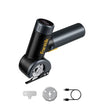
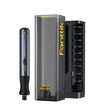
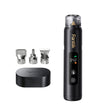
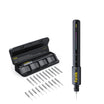
Based on our internal shop observations and community feedback from various repair workflows, we have identified three primary torque zones. These values are observed using calibrated precision drivers (such as the Fanttik E1 series) on standard M2 and M2.5 fasteners:
- The Ultra-Low Zone (0.1 – 0.2 N·m): Often used for the most delicate components, such as ZIF (Zero Insertion Force) connector brackets, Wi-Fi card retainers, and small daughterboards.
- The Standard Internal Zone (0.3 – 0.4 N·m): A common "sweet spot" for most M2 and M2.5 screws that secure the motherboard to the chassis or hold battery assemblies in place.
- The Structural/Thermal Zone (0.5 – 0.6 N·m): A typical upper limit for heatsink tension screws and external chassis screws that require a more robust clamp load.
Heuristic Note: These ranges are derived from fastener shear strength modeling and observed failure rates in plastic standoffs during workshop testing. While major OEMs rarely publish these specs publicly—a data gap noted in our review of laptop manufacturer manuals—these heuristics represent a practical operational ceiling for many modern portable computers.
The Risks of "Naked" Automation
While electric precision drivers offer consistency, they can lack the immediate tactile feedback of a manual driver. A common mistake is assuming that a tool's lowest setting is universally safe for every screw. Without understanding the tool's breakaway force, you risk "cam-out"—where the bit slips out of the screw head—or over-driving the screw into a plastic standoff, which can cause the material to bloom or crack.
The Calibration Protocol: Testing Before You Turn
Before beginning work on high-value hardware, we recommend a "Breakaway Test." This is a practical step for anyone using a new electric driver or a tool that has been out of use.
Step-by-Step Calibration Heuristic:
- Find a Surrogate: Use an old, non-functional motherboard or a scrap piece of electronics with similar plastic standoffs.
- Test the Clutch: Set your tool to its lowest setting. Drive a screw into the scrap board until the clutch engages (the motor stops or clicks).
- Verify Tactilely: Use a manual precision driver to check the tension. If the screw feels significantly loose, the setting may be too low for a secure fit. If it does not move at all under light manual pressure, the setting might be higher than necessary for the initial "bite."
- Adjust for Material: Screws entering metal threaded inserts (common in premium magnesium alloy laptops) can generally handle slightly more torque than those going directly into ABS plastic.
Methodology Note: Our recommendation for consistent torque output is informed by industrial production line standards. While a DIYer may not require a certified laboratory setup, using a tool that provides repeatable output across multiple repetitions is a key factor in avoiding localized board damage.
| Parameter | Value/Range (Heuristic) | Unit | Rationale |
|---|---|---|---|
| Target Torque (M2 Screw) | 0.2 - 0.4 | N·m | Helps prevent standoff stripping in plastic |
| Heatsink Max Torque | 0.6 | N·m | Facilitates thermal contact without warping |
| Tool Accuracy Requirement | ±5 - 10 | % | Promotes consistency across all fasteners |
| Bit Size (Standard Laptop) | Phillips #00 | Size | Common industry standard for internal fasteners |
| Tightening Passes | 3 | Count | Recommended for even thermal pressure |
Advanced Workflow: The Heatsink Cross-Pattern
One of the most sensitive repairs involves replacing thermal paste or upgrading a cooling solution. The heatsink must sit as flat as possible against the CPU or GPU die. If one corner is significantly tighter than the others, it can create a microscopic air gap, potentially leading to thermal throttling.
We recommend a multi-pass cross-pattern (often called a "star pattern"). Avoid tightening a heatsink screw fully on the first try. Instead, follow this sequence:
- Pass 1 (The Seat): Tighten all screws in a diagonal cross-pattern until they just make contact (roughly 25% of the final tension).
- Pass 2 (The Clamp): Tighten the same pattern to roughly 75% of the final torque.
- Pass 3 (The Final Lock): Apply the final torque (e.g., 0.5 N·m).
This graduated approach allows the thermal paste to spread more evenly across the die, filling microscopic voids without being unevenly squeezed out.
Avoiding "Cam-Out" and Bit Wear
In precision repair, the tool bit is a consumable item. We have found that a Phillips #00 bit, even one made of high-quality S2 steel, can begin to show microscopic rounding after several hundred uses. In the context of small M2 fasteners, a rounded bit increases the risk of damage.
"Cam-out" occurs when the torque required to turn the screw exceeds the friction holding the bit in the screw head. Because laptop screws are often shallow, there is very little surface area for the bit to grab. If you feel the bit jump or slip, stop immediately. Continuing can strip the head, which may require specialized extraction tools.
Expert Tip: Inspect your bits under a magnifying glass or a phone's macro camera periodically. If the edges of the "cross" look shiny or rounded, replace the bit. It is more cost-effective to replace a bit than to manage a stripped screw on a motherboard. For more on bit maintenance, see our guide on organizing precision accessories.
The Human Element: When to Switch to Manual
While electric precision tools offer efficiency, there are specific moments where manual control is often preferred. Expert repair technicians often suggest that, for ultra-delicate tasks like ZIF connectors and ribbon cables, the manual technique provides better tactile feedback.
ZIF connectors use a tiny plastic flap to lock a ribbon cable in place. These flaps can be brittle. We recommend using a manual driver or a specialized spudger for these components. The immediate feedback of a manual tool helps prevent applying excessive force that could snap the hinge.
Safety, Compliance, and the Environment
When repairing laptops, you are managing energy storage. Most modern laptops use high-density Lithium-ion or Lithium-polymer batteries, which require specific handling to remain compliant with safety standards like the EU General Product Safety Regulation (GPSR).
Battery Safety Checklist:
- Disconnect First: Before touching any internal screw, the battery should be physically disconnected from the motherboard.
- Torque for Terminals: If your battery uses screws for its power terminal, ensure these are tightened securely within the internal range (~0.5 N·m) to help prevent high-resistance connections.
- State of Charge: We recommend performing repairs when the battery is below 25% charge to reduce energy potential. For transportation of repaired units, refer to the IATA Lithium Battery Guidance regarding State of Charge (SoC) limits.
Summary of Best Practices for DIYers
Managing low torque is an exercise in restraint and methodology. By adopting a professional mindset, you can significantly reduce the risk of hardware damage.
- Start with low settings: It is easier to increase torque than it is to repair a cracked board or stripped standoff.
- Use the correct bit: Ensure your bit is sharp and matches the screw head exactly (e.g., use Phillips #00 only for #00 screws).
- Utilize the Cross-Pattern: Avoid tightening structural or thermal components in a simple linear sequence.
- Monitor the tool: If the clutch does not engage as expected, stop and check if the screw is cross-threaded.
- Maintain tactile awareness: Periodically use a manual driver to verify the "feel" of your electric tool's settings.
For those looking to expand their repair capabilities, mastering one-handed operation in cramped spaces is a natural next step once you have established a foundation in torque control.
Disclaimer: This article is for informational purposes only. Laptop repair involves sensitive components and high-density batteries that can pose fire or shock hazards if mishandled. Always refer to your specific device's service manual. If you are unsure of your ability to perform a repair safely, consult a certified professional technician. Fanttik is not responsible for damage to hardware resulting from the use of these heuristics.

Continue reading
 Post-Project Dust Removal to Extend Brushless Motor Life
Covers the blow-and-brush technique, common mistakes, and productivity benefits for woodworking and drywall tools.
Post-Project Dust Removal to Extend Brushless Motor Life
Covers the blow-and-brush technique, common mistakes, and productivity benefits for woodworking and drywall tools.
 DIY vs. Professional Repair: Navigating Tool Warranty Logic
Covers the Magnuson-Moss Warranty Act, seal tests, and risks of hybrid hacking to help you make informed repair...
DIY vs. Professional Repair: Navigating Tool Warranty Logic
Covers the Magnuson-Moss Warranty Act, seal tests, and risks of hybrid hacking to help you make informed repair...
Leave a comment
This site is protected by hCaptcha and the hCaptcha Privacy Policy and Terms of Service apply.